3.1.5 Pipeline
With the pipeline feature, you can build an image and deploy to a server all at once.
You can also change the image version of a deployed server and quickly redeploy.
a) Service > Select Application Map > Pipeline. 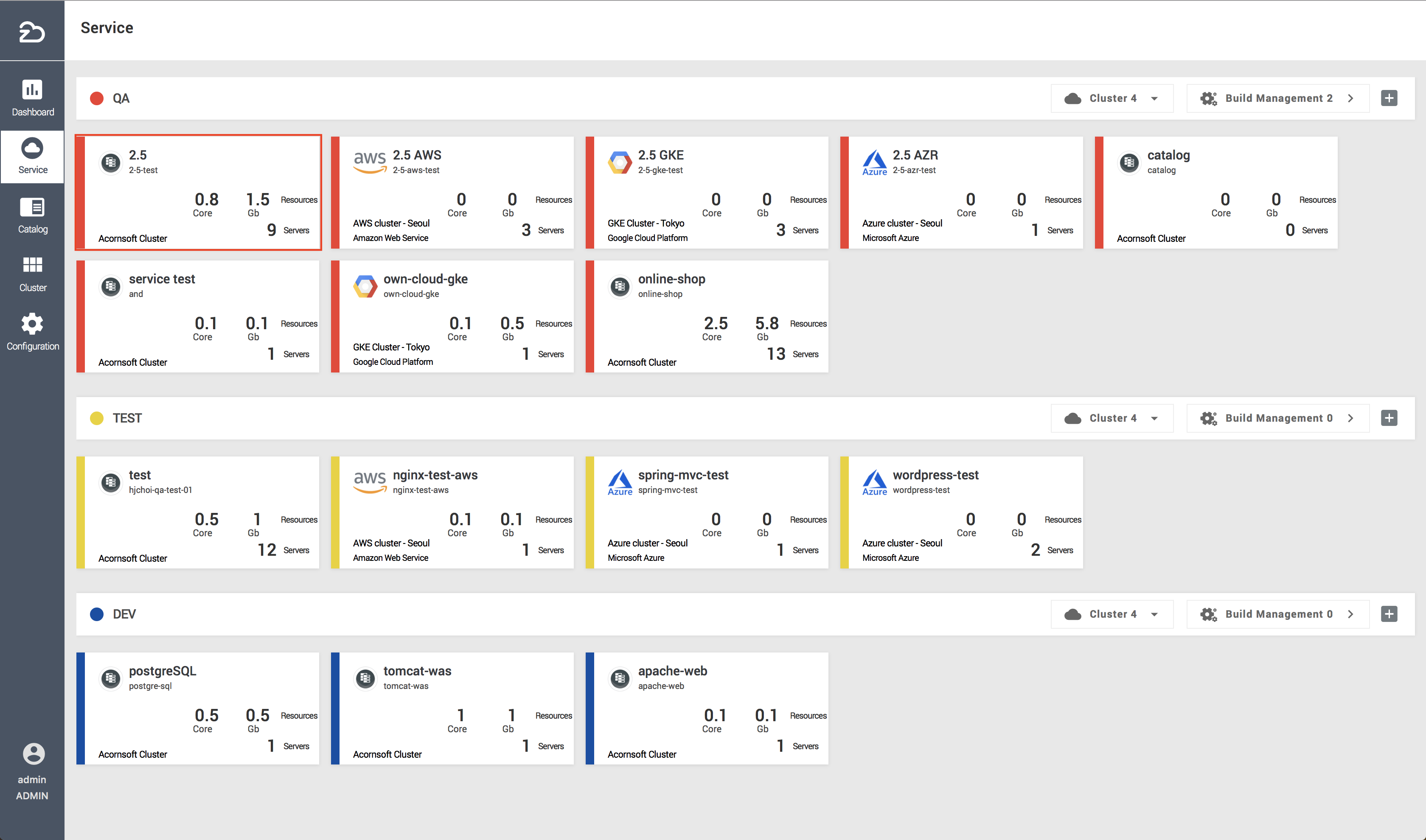
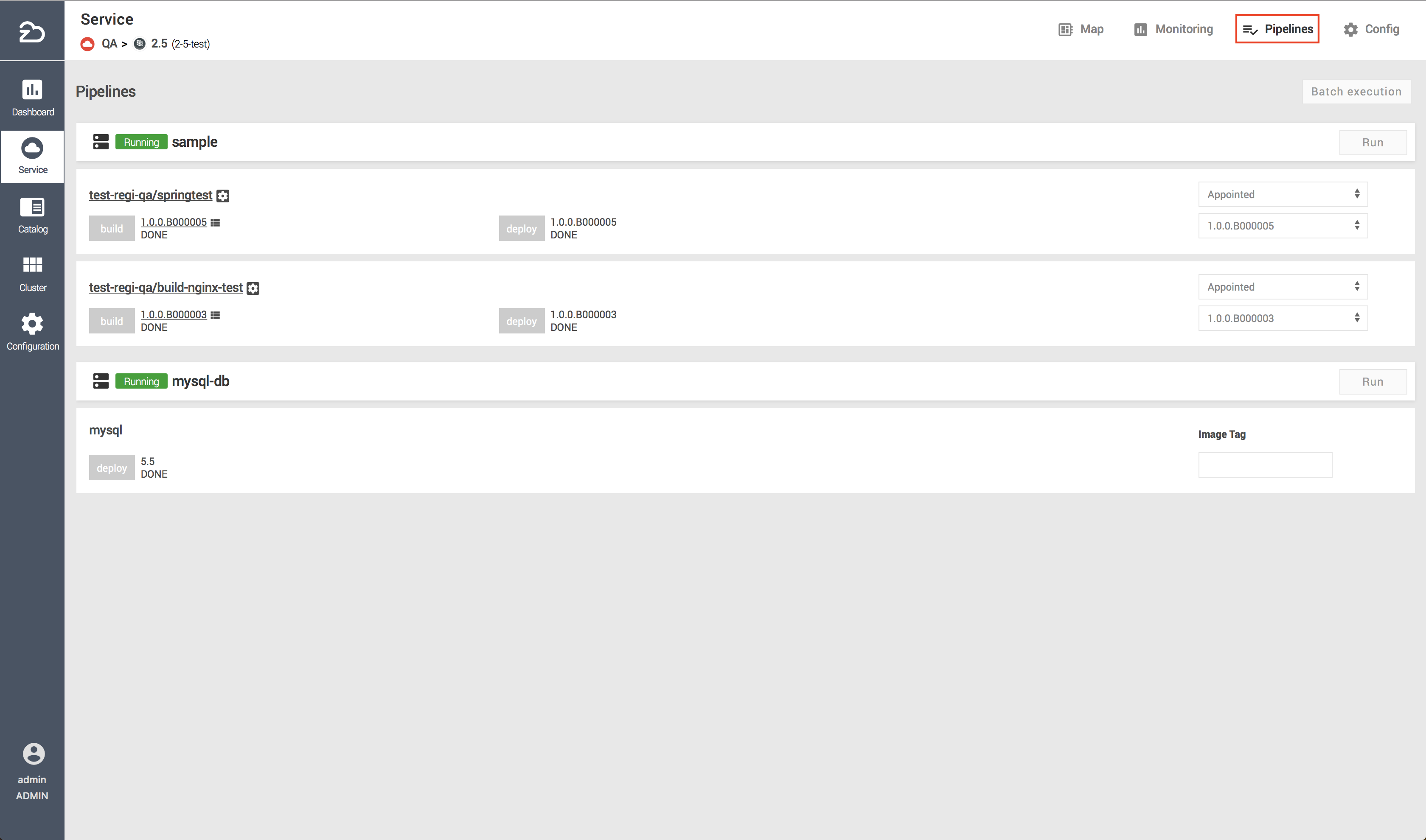
| Pipeline Menu | Description |
|---|---|
| Batch execution | Execute pipeline tasks in batch |
| Run | Execute a specific pipeline task |
| Image Menu | Build | Description |
|---|---|---|
| Image Tag | X | Deploy server of the corresponding version when enter tag in registry |
| Appointed | ⃝ | Deploy designated server version among images |
| Latest | ⃝ | Deploy latest server version among images |
| Build & Deployment | ⃝ | Deploy corresponding server version after a new image is built |
b) Execute Pipeline
1. If server was created with a common image
Enter image tag and click [Run] or [Batch execution]. (Only available if the deployed version is different from the version entered; Excludes ‘Latest’) 
2. If server was created with a built image
- Deploying a designated image
Select [Appointed] and an image from the right of the pipeline task list and click [Run] or [Batch execution]. (Only available if the deployed version is different from the version entered)
- Deploying a newly-built image
Select [Build & Deployment] from the right of the pipeline task list and check [Execution whether]. Click [Run] or [Batch execution]. (Only available if [Execution whether] is checked.) 
- Deploying the latest image
Select [Latest] from the right of the pipeline task list and click [Run] or [Batch execution]. (Only available if the deployed version is different from the version entered) 
- Edit Build and View Log
You will be redirected to the Edit Build page when the name of a build image is clicked.
You can view the log by clicking on the build tag name.
